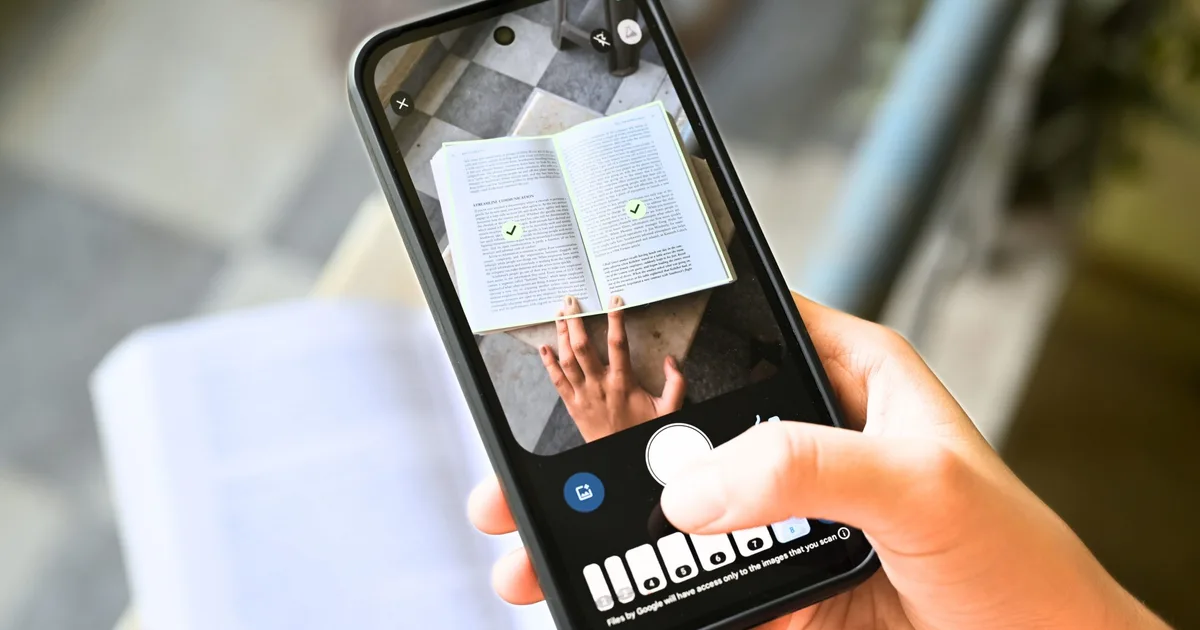
Scanning documents from a phone has always been a frustrating experience, especially on Android smartphones. You’ve to scan one page at a time, blurry captures you don’t notice until after, or accidentally hovering over the same page twice; all these issues bother users on a day-to-day basis.
Well, Google Drive’s new document scanner redesign fixes all three problems at once. Announced by Sameer Samat, the President of Android Ecosystem at Google, the feature is now rolling out for Android users.

What’s actually new in the Google Drive scanner?
The biggest change, in my opinion, is Smart Batch Scanning. Instead of hitting the capture button for each page, you can simply hover your phone over a bunch of documents arranged on a table or your bed, as if you’re recording a video.
The tool identifies each one of them and separates them into individual documents. You also get a pause button to disable auto-scanning in the middle of the session, along with a system file picker that lets you add pictures you’ve already taken.
Apart from batch scanning, you also get Auto-Best Frame and Duplicate Detection. While the former replaces blurry images with the sharpest frame available from what you capture, the latter identifies pages you’ve scanned twice and skips them automatically.
Is there a catch?
Google Drive’s scanner also gets a redesigned interface, which drops the old beaker icon in the top-right corner in favor of a cleaner Material 3 Expressive viewfinder. Since the feature is embedded within Google Play Services, it also works in the Files by Google app, and not just Google Drive. The catch, however, is slightly disappointing.
The entire automated scanning experience runs on the device: it works offline and keeps your documents off Google’s servers. And it’s because of the on-device processing that it requires at least 8GB of RAM. So, if your Android device doesn’t meet that requirement, you won’t have access.


