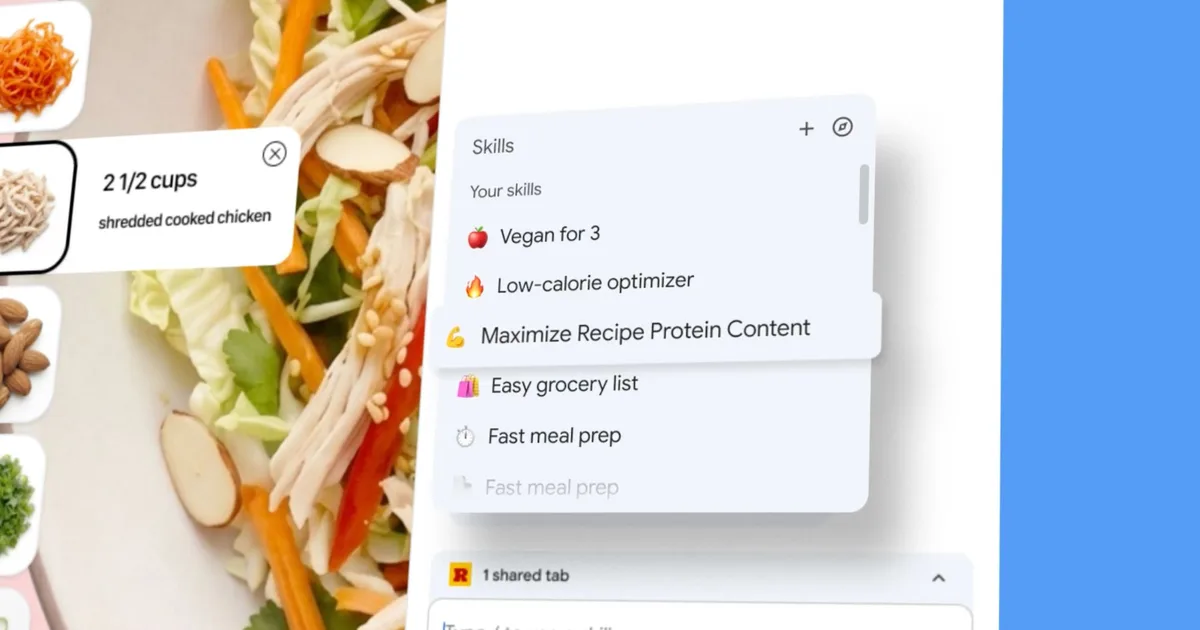
If you have ever typed the same AI prompt into Gemini multiple times across different tabs, you know how tedious that gets. Google has now solved that problem by launching a new feature called Skills in Chrome. It lets you save your most useful Gemini prompts and run them again instantly with a single click.
So what can I do with Skills in Chrome?
Skills can turn your Gemini prompts into reusable one-click tools. Once saved, a Skill stays available across all your desktop devices signed into the same Google account.
Early testers have used them to calculate protein macros from recipe pages, generate side-by-side product spec comparisons across multiple tabs, and scan lengthy documents to summarize information.

Google is also launching a pre-built Skills library with ready-to-use prompts for common tasks. You can use them as-is or customize them to fit your needs. Skills also come with privacy guardrails. Before taking sensitive actions such as sending an email or adding a calendar event, it will ask for your confirmation first.
How to use Skills in Google Chrome
Skills are rolling out to desktop Chrome users with their language set to English-US. To save a Skill, open Gemini in Chrome and type a prompt you want to reuse. Once the conversation is in your chat history, you will see the option to save it directly as a Skill from there.

To run it, type a forward slash ( / ) in the Gemini chat box and select your saved Skill. You can also use the plus sign ( + ) button to access Skills. To manage or edit them, type forward slash ( / ) and click the compass icon. To browse the pre-built library, look for it inside the same menu.
It is worth noting that Google is also testing a Projects feature for Gemini that lets you organize AI chats into folders, similar to ChatGPT. However, the feature is currently available to a small group of users and is not fully functional yet.


